
Part 7 · Tree Styles & Settings
Content profiles in Tree styles
Tree styles is where profiles are managed for every tree: set the active one, duplicate a built-in profile to make it editable, rename or delete your own, and edit both halves of a profile — Text & Layout and Annotation Tools.
The profile list and its buttons
The list on the left holds every profile; the toolbar acts on the selected one.
- Profile list — the four built-in profiles plus your own. The Built-in badge marks the ones that cannot be edited.
- Set Active — the profile new trees start with.
- Save Profile — keep changes made in the tabs below.
- Duplicate… — copy the selected profile under a new name. This is the first step for changing a built-in profile.
- Delete — remove your own profile (disabled for built-ins).
- Rename — rename your own profile (disabled for built-ins).
- Built-in note — shown while a built-in profile is selected: its fields are read-only until you duplicate it.
- Text & Layout — the formatting half: fonts, colours, alignment, spacing (the same fields as the editor's Formatting panel).
- Annotation Tools — the presets half: how each drawing tool looks (next guide).
Duplicate a profile
Click Duplicate…, type a name, and save. The copy is selected and fully editable.
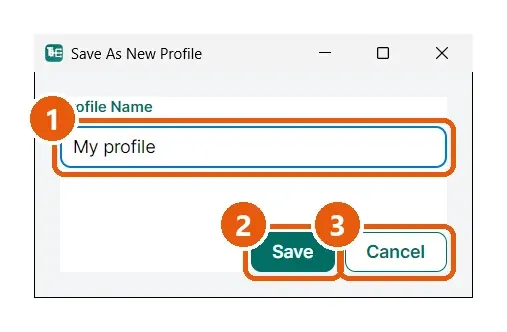
- Profile Name — the new profile's name as it will appear in the list and in the editor's profile picker.
- Save — creates the copy.
- Cancel — closes without creating anything.
Edit your copy
With your own profile selected, both tabs unlock.
- Your profile — selected in the list, no Built-in badge.
- Annotation Tools — the tab is enabled now; switch to it to edit presets.