
Install Treetor
Treetor runs on Windows, macOS and Linux. Download the installer for your computer from the Treetor download page, run it, and launch Treetor — the whole thing takes about a minute.
Download the installer for your computer
Open treetor.app/download and pick the installer that matches your computer. Every installer is published through Treetor's public GitHub Releases, so the file you download is the same one everyone else gets.
- Windows — Treetor-Setup.exe. Windows 10 or newer, 64-bit.
- macOS — Treetor.pkg for Apple Silicon (M1, M2, M3, M4 and newer).
- Linux — Treetor.AppImage runs on any modern distribution; treetor.deb is for Debian and Ubuntu.
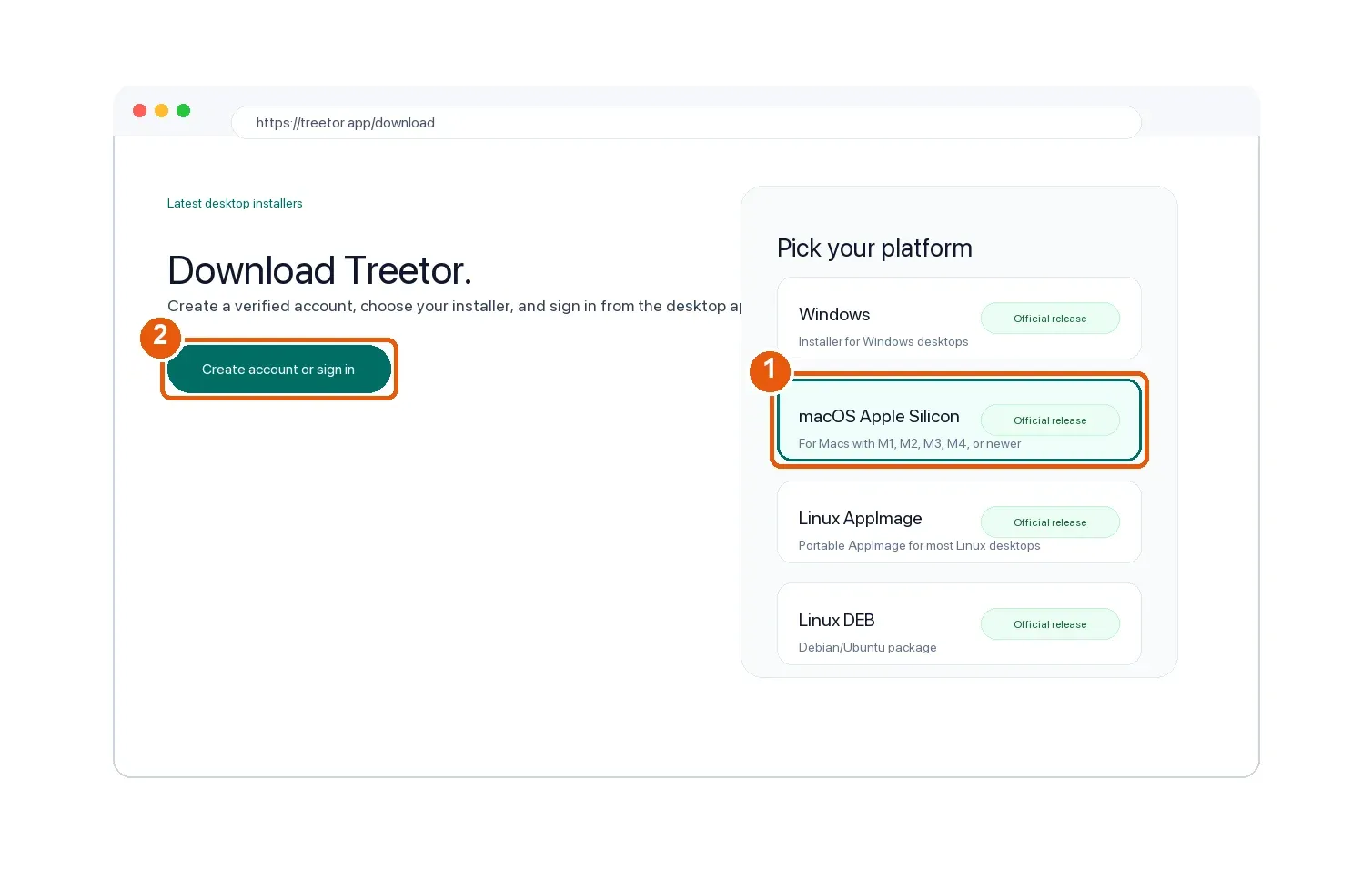
- macOS Apple Silicon — choose this on M-series Macs.
- Create account or sign in — installer links are available after account verification.
Run the installer
Open the downloaded file and follow the prompts. Treetor installs like any other desktop app and adds itself to your Start menu, Applications folder or app launcher.
- Windows — double-click Treetor-Setup.exe. If SmartScreen asks, choose More info › Run anyway.
- macOS — double-click the .pkg and follow the installer. Treetor lands in your Applications folder.
- Linux — make the .AppImage executable and run it, or install the .deb with your package manager.
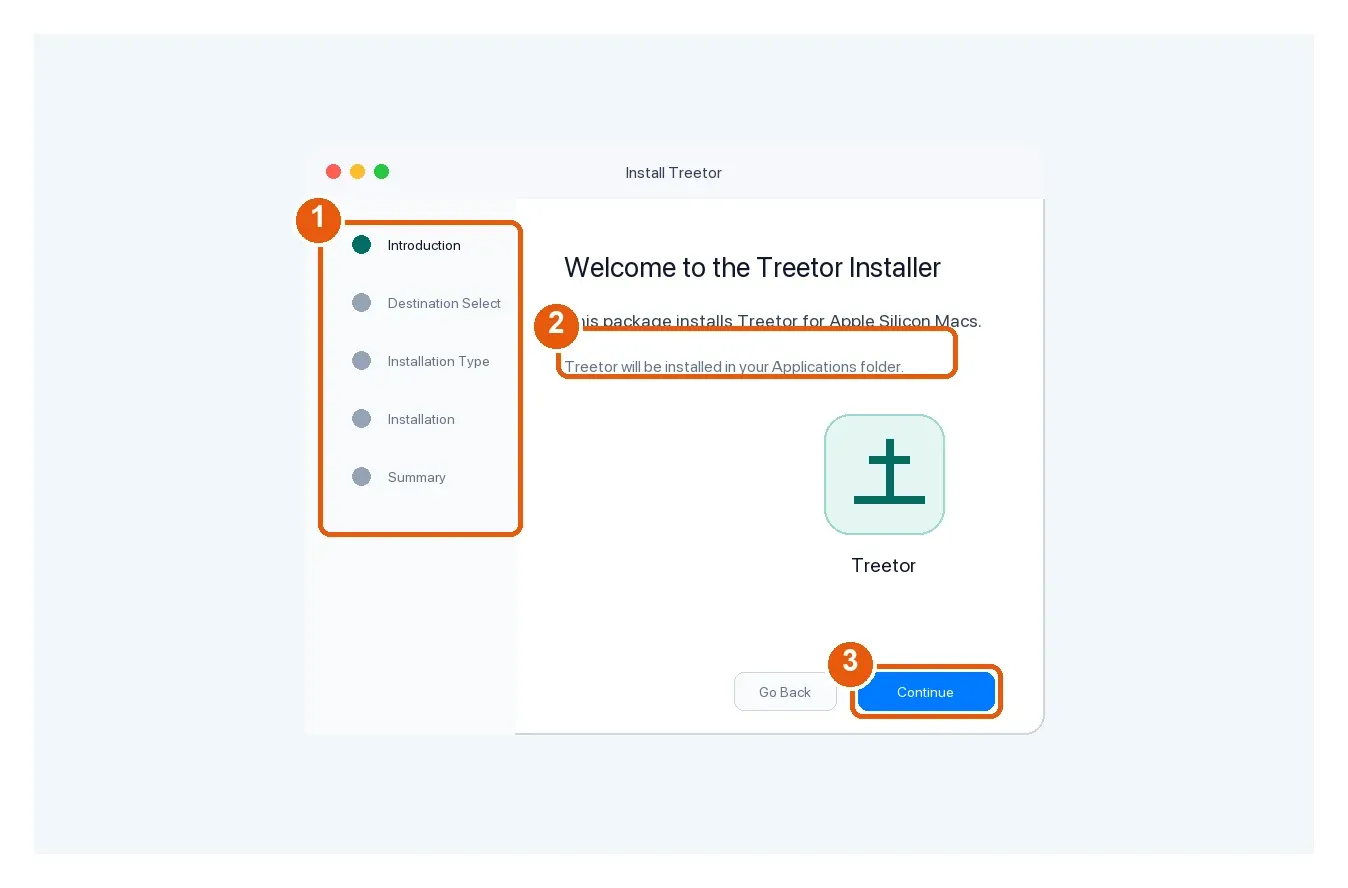
- Installer steps — Introduction, destination, installation type, install, and summary.
- Applications folder — the default destination for the macOS app.
- Continue — advance through the installer prompts.
Launch Treetor
Start Treetor from your Start menu, Launchpad or app launcher. The first screen asks you to sign in — that is where your 30-day trial begins. The next guide walks through it.
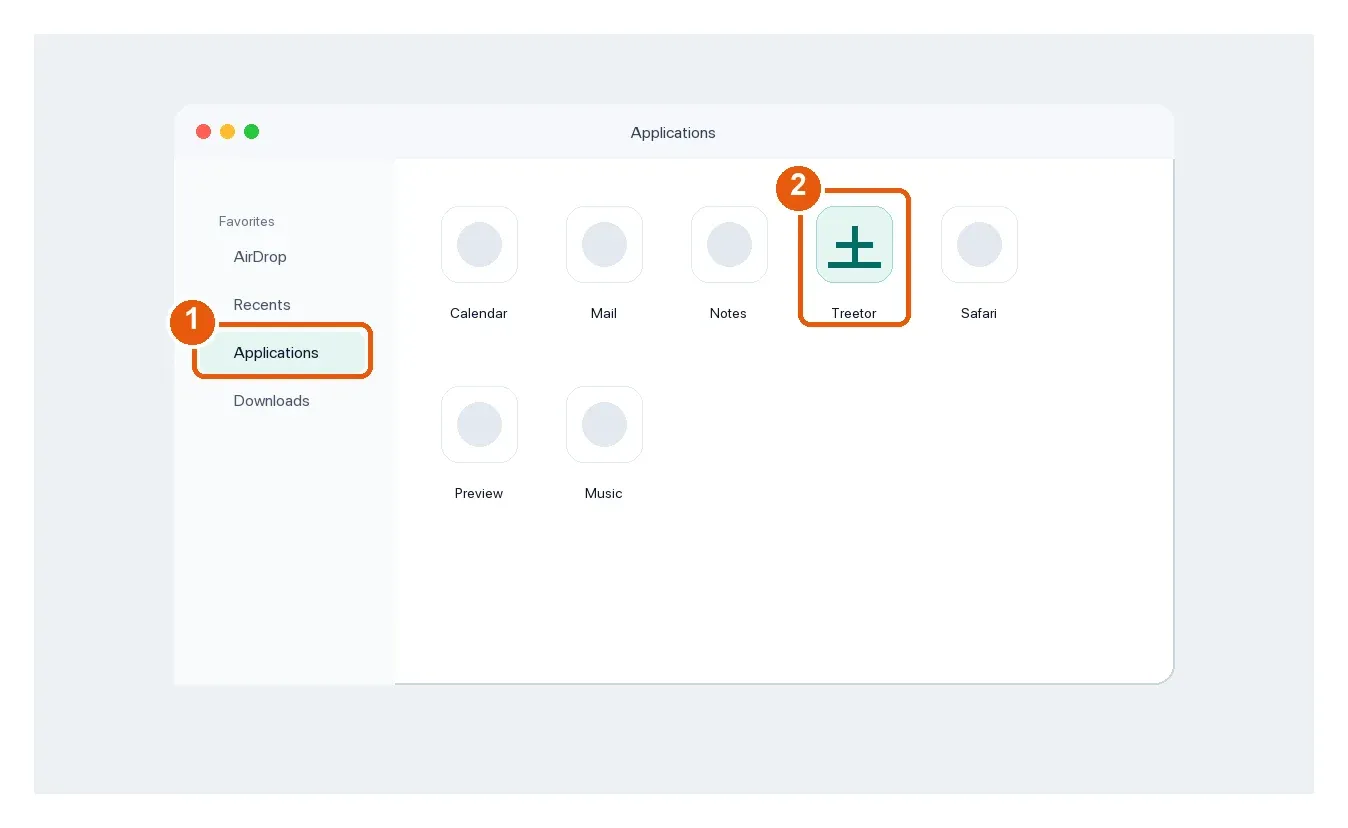
- Applications — open Treetor from Finder or Launchpad after installation.
- Treetor — launch the app, then sign in to start your trial.