
Saving & auto-save
Treetor saves your tree every 30 seconds while you edit, and again when you press Back. The Save button is for when you want to be sure right now.
Three ways your work is saved
You rarely need to think about saving, but it helps to know when it happens.
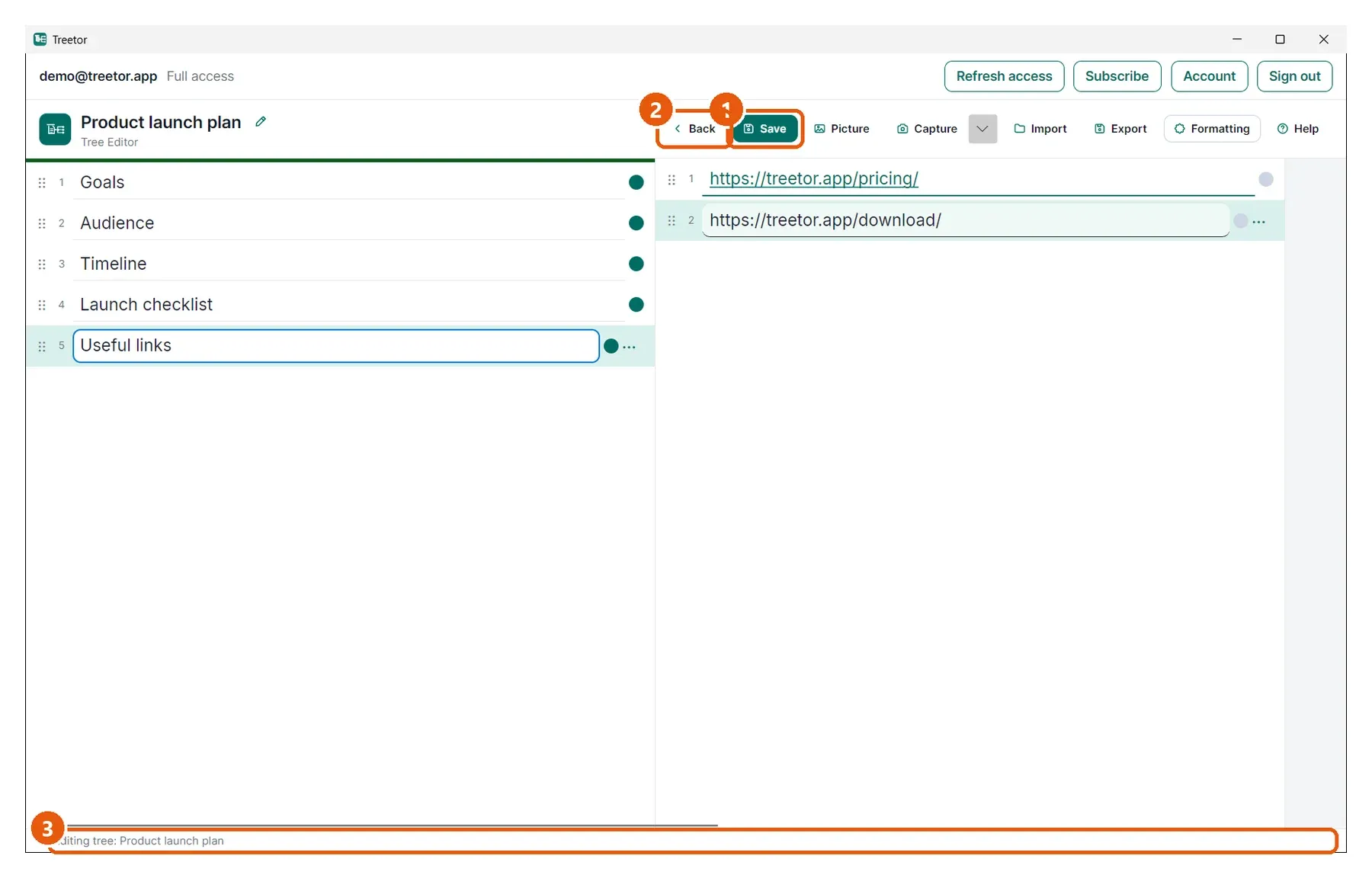
- Save — writes the tree to disk immediately.
- Back — saves, then returns to the Tree Library.
- Status bar — shows the tree you are editing and, for a moment, the save state while a save runs.
If a save fails
If the tree cannot be written — the data folder is on a disconnected drive, or the disk is full — Treetor shows a Save Tree Failed message with the reason and keeps your changes in memory. Fix the cause and press Save again; do not close the tree until a save succeeds.