
Import a tree
Import in the Tree Library creates a new tree from a file: a Treetor Pack restores a tree exactly, a Markdown file becomes a tree built from its headings and lists, and an OPML outline brings a tree across from Dynalist, Workflowy or another outliner.
Choose the file
Click Import and pick a .tpack, .md, .markdown or .opml file. The new tree appears in the library and opens in the editor.
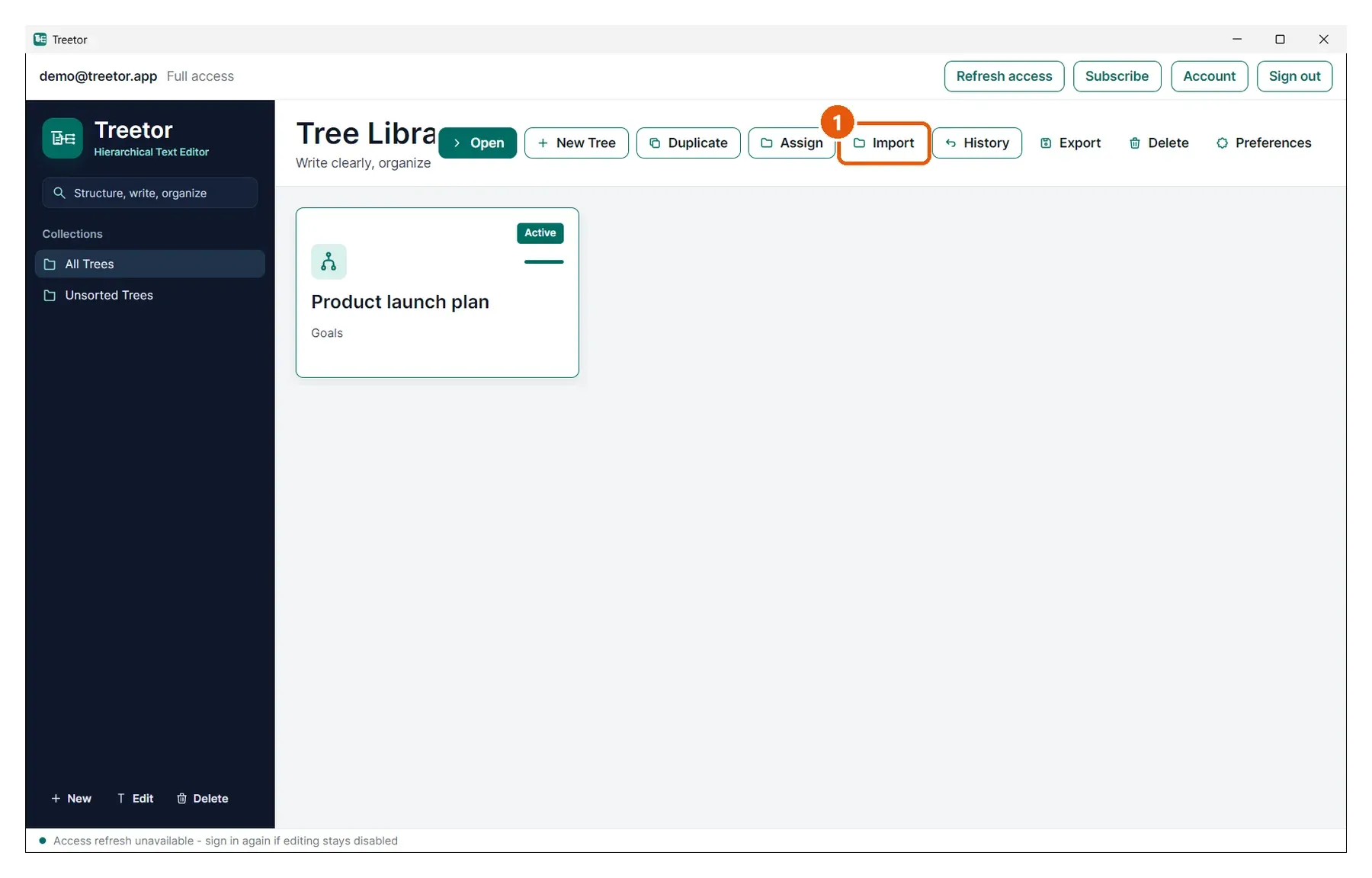
- Import — opens the file dialog. Nothing is changed in existing trees; import always creates a new one.
Restoring a Treetor Pack
The tree comes back with its title, note, items, pictures and editable annotations. Importing the same pack twice gives you two separate trees.
How Markdown becomes a tree
- The first # heading becomes the tree title.
- Each further heading becomes an item; deeper heading levels nest under shallower ones.
- List entries become items under the nearest heading; indented entries nest under the entry above.
- Checklist entries (- [ ] and - [x]) are kept as text with their box, so you can see what was done.
- Code blocks become one item each, with the code intact.
- Paragraphs become items too, one per paragraph.
Pictures linked from the Markdown file are imported when the image files are next to it.
Moving in from another outliner
Export your outline as OPML from Dynalist, Workflowy, OmniOutliner or anything else that writes OPML, then import the file here.
- The outline's title becomes the tree title.
- Each outline entry becomes an item, nested exactly as it was.
- A note on an entry is kept as further lines of the same item.
- A completed entry arrives with a [x] checklist marker in front of it.
- Dynalist's __underscored__ italics and its $$…$$ formulas, and Workflowy's bold, italic, strikethrough and link tags, are converted to the Markdown Treetor renders.