
Import a branch
The editor's Import button attaches a file into the tree you are editing: a Treetor Pack, a Markdown file or an OPML outline becomes a new item — with its own children — in the active column, right after the selected item.
Pick where it goes, then the file
Select the item the imported branch should follow, then click Import and choose a .tpack, Markdown or .opml file.
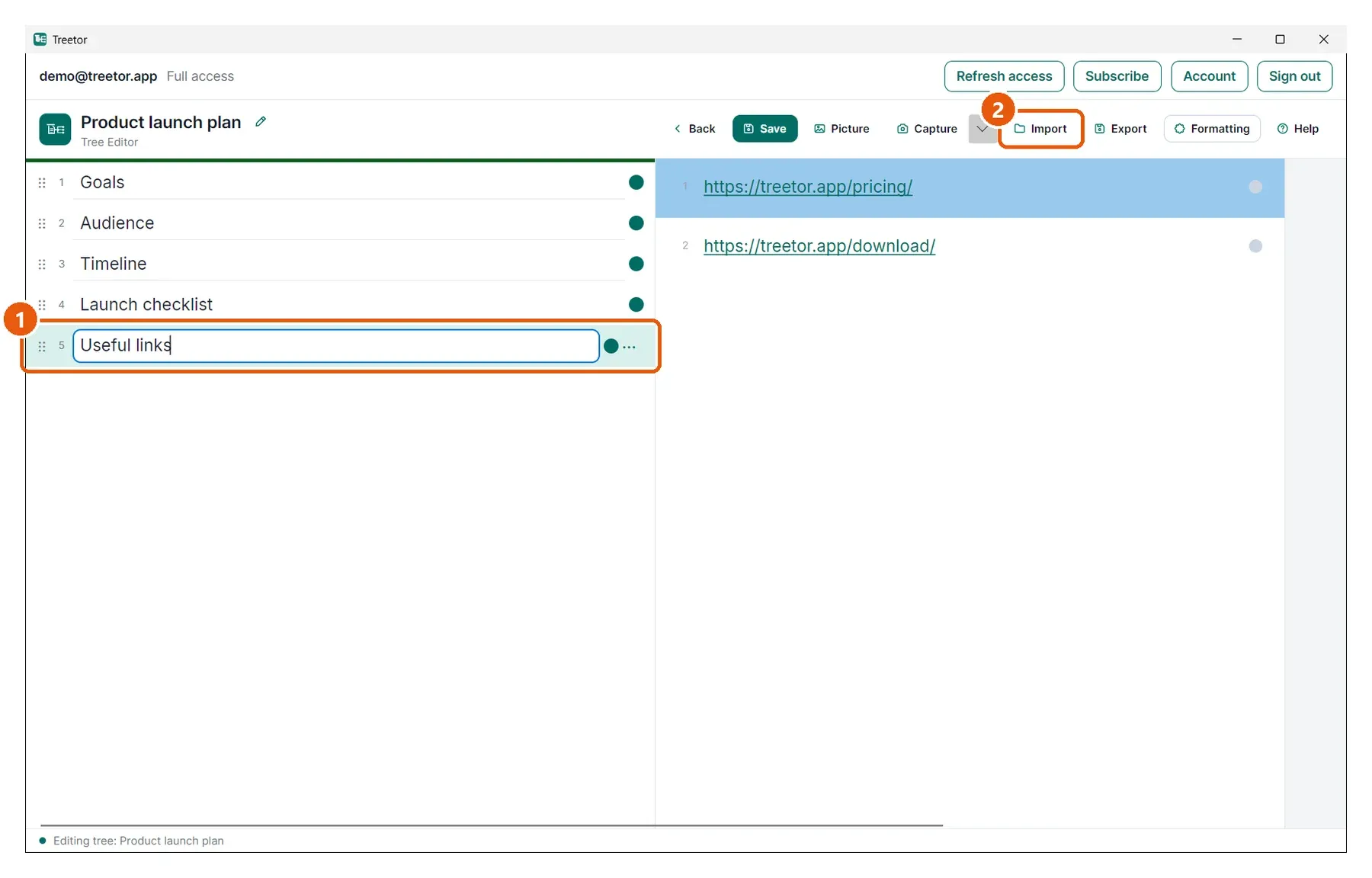
- Selected item — the imported branch is inserted after it, at the same level.
- Import — opens the file dialog.
The imported branch
The file's top level becomes one new item; everything inside it becomes that item's children, so the rest of your tree is untouched.
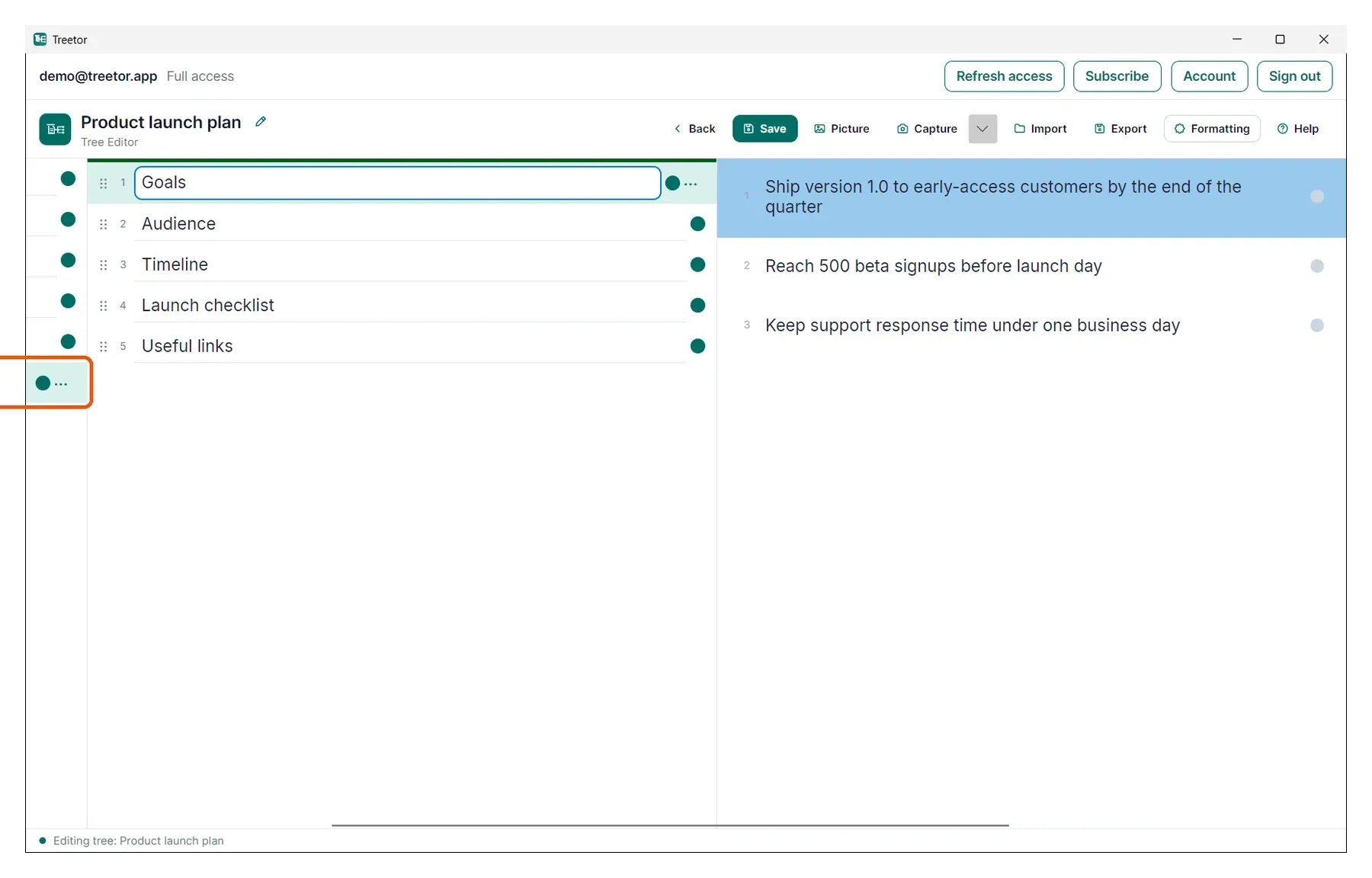
- New item — named after the file's title (its first heading, or the pack's root item). Open it with Ctrl+→ to see what came with it.