
Per-item formatting
One item can look different from the rest — a heading in bold, a warning in red. Tick Custom formatting for this item, adjust the same fields, and Reset to Tree Defaults when you change your mind.
Give one item its own look
Select the item, open the Formatting panel and scroll to Selected Item Formatting (or choose Formatting… from the item's menu, which opens the panel for you).
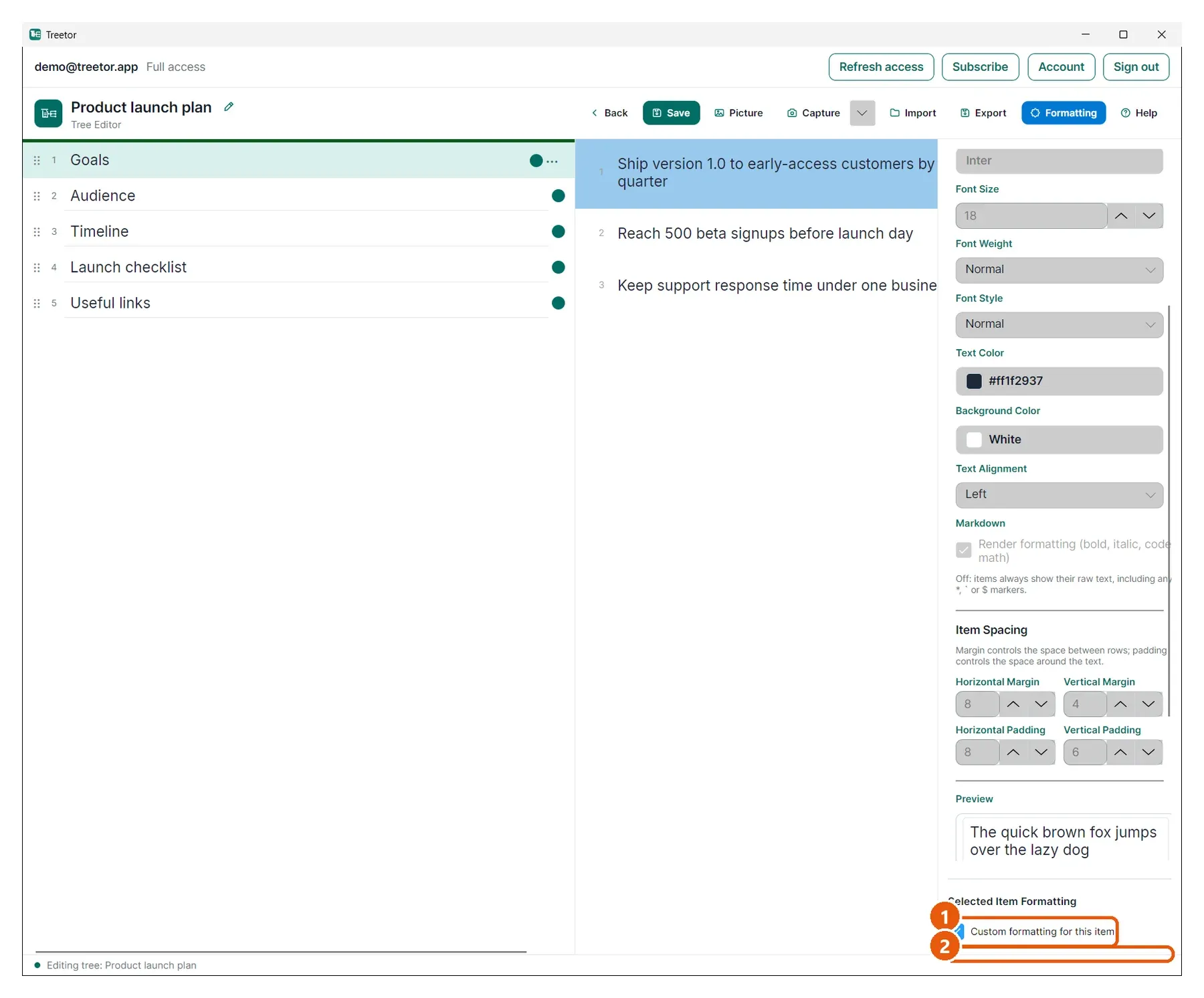
- Custom formatting for this item — tick it to give the selected item its own settings, starting from the tree defaults.
- Item fields — the same font, colour and alignment fields as List Formatting, applied to this item only.
- Reset to Tree Defaults — removes the override; the item follows the tree again.