
Export dialog overview
Export turns a whole tree into a Markdown file, a Word document, a PDF, a Treetor Pack or an OPML outline. One dialog covers all five: pick a format card, choose where to save, and the button at the bottom names what it will do.
Format, location, go
Select a tree card in the library and click Export. The dialog remembers nothing between runs, so check all three parts each time.
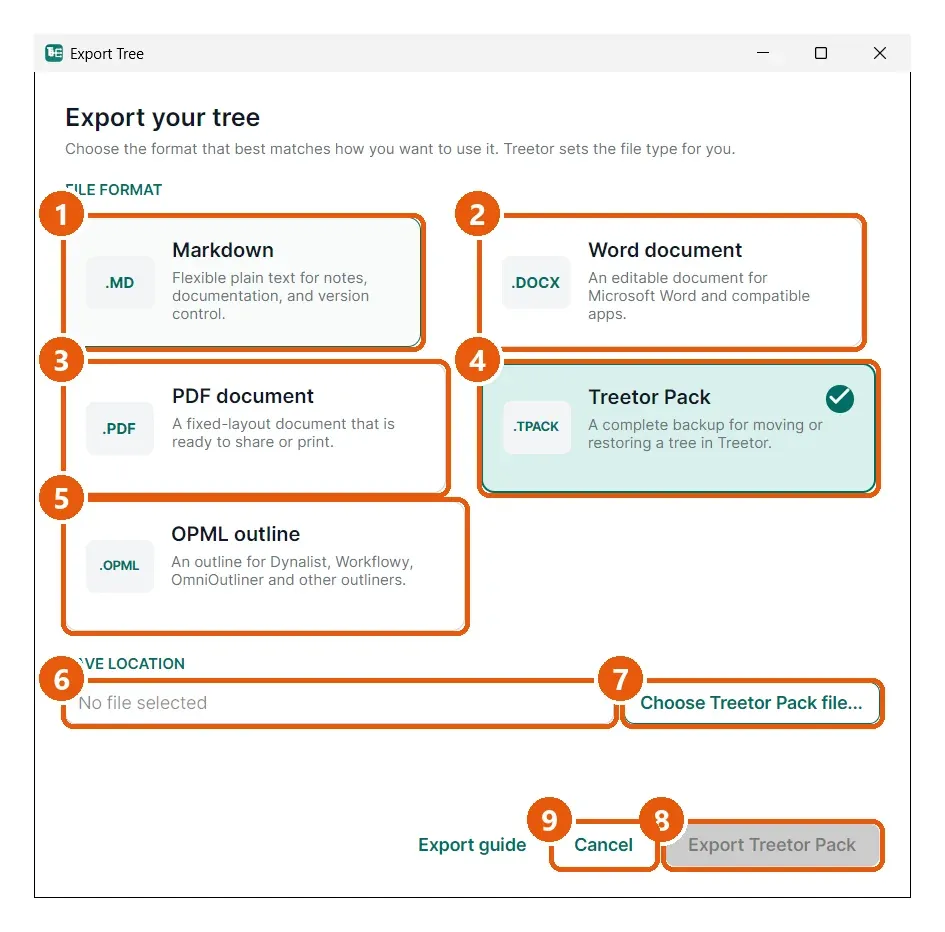
- Markdown — plain text with headings and lists; pictures alongside or embedded.
- Word document — an editable .docx.
- PDF document — fixed layout, ready to share or print.
- Treetor Pack — a complete backup (.tpack) that Treetor can import again.
- OPML outline — an outline for Dynalist, Workflowy, OmniOutliner and other outliners.
- Save location — the file Treetor will write. Empty until you choose one.
- Choose … file… — opens the save dialog with the right file type already set.
- Export … — the button reads Export Markdown, Export Word, Export PDF, Export Treetor Pack or Export OPML depending on the card.
- Cancel — closes without exporting.