
Open, duplicate, delete trees
Everything you do to a whole tree happens in the library: select a card, then use the toolbar or the card's right-click menu.
Select a card, then act on it
The toolbar buttons work on the selected card. Click a card once to select it, or double-click to open it directly.
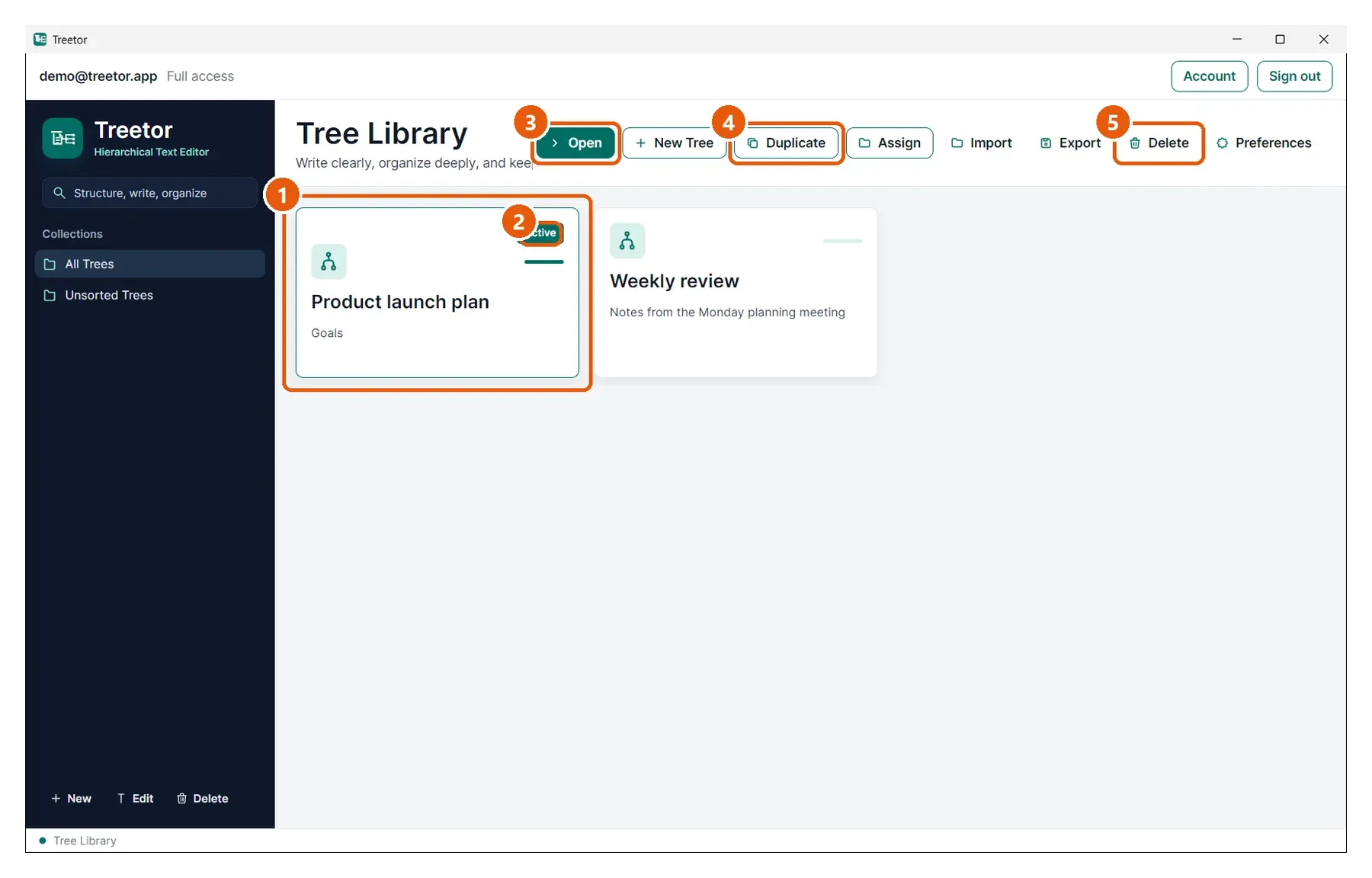
- Tree card — click to select. The teal border shows which tree the toolbar will act on.
- Active — marks the selected card.
- Open — opens the tree in the editor. Double-clicking the card does the same.
- Duplicate — makes a full copy, pictures included, named Duplicated …. Rename it from the editor's pencil button.
- Delete — removes the tree after a confirmation.
The card menu
Right-click a card for the same actions without reaching for the toolbar.
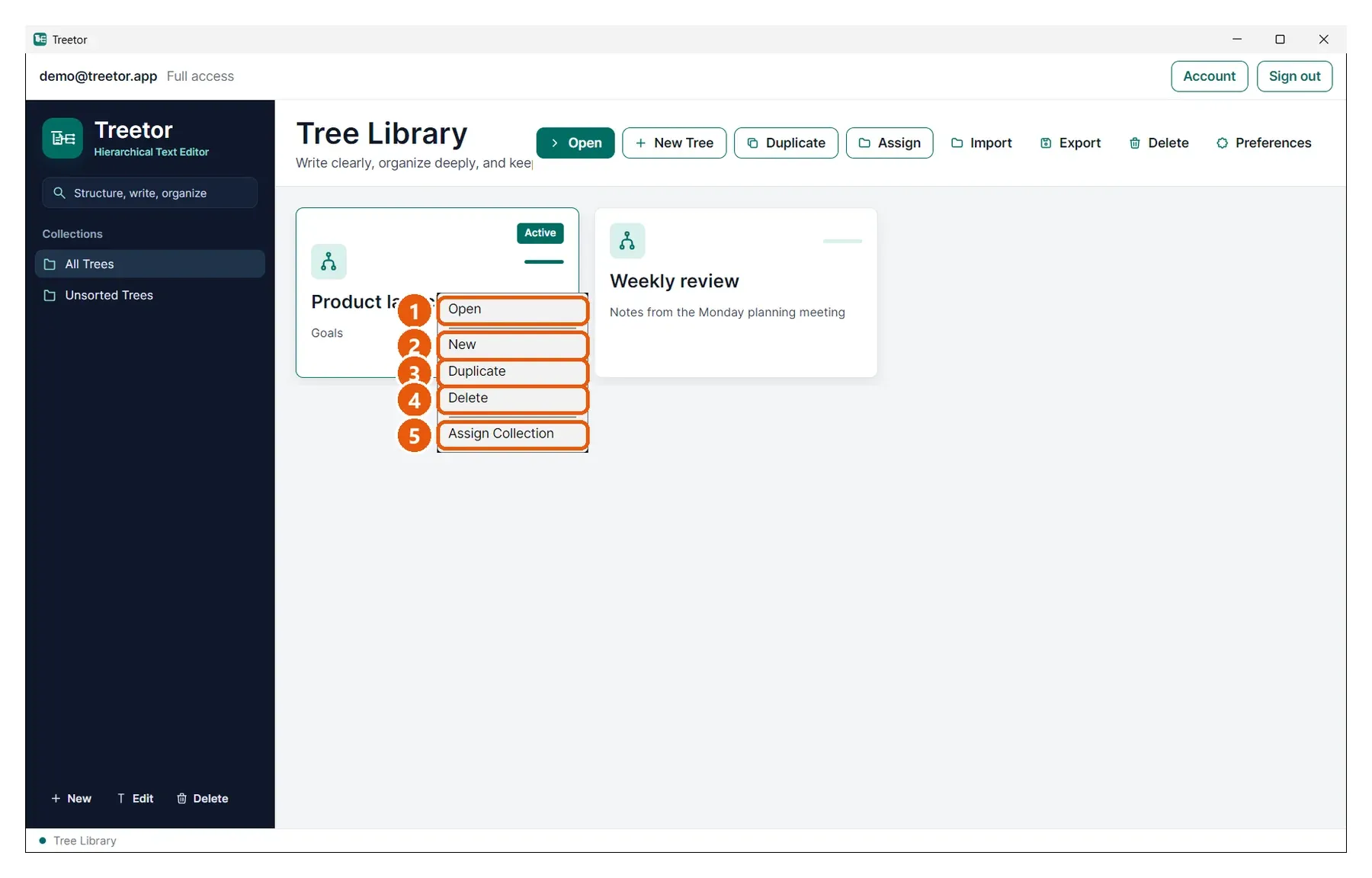
- Open — same as the toolbar button.
- New — the New Tree dialog.
- Duplicate — copy this tree.
- Delete — delete this tree, after confirmation.
- Assign Collection — put this tree in a collection (next guide).
Deleting asks first
Deleting a tree removes it with all of its items and pictures. Treetor asks before it does.
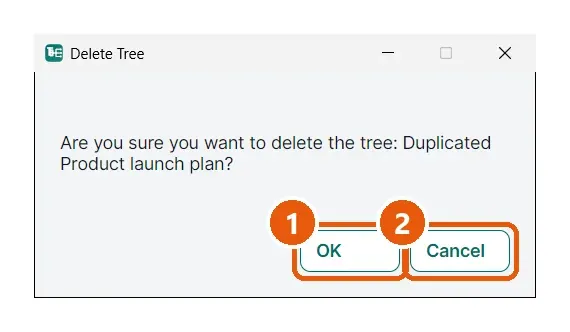
- OK — confirms. There is no undo for a deleted tree, so export a Treetor Pack first if you might want it back.
- Cancel — keeps the tree.