
Organize with Collections
Collections are named groups of trees in the library sidebar — projects, clients, years, whatever helps you find a tree in one click. A tree belongs to one collection at a time.
The Collections sidebar
The sidebar lists your collections. Click one to show only its trees.
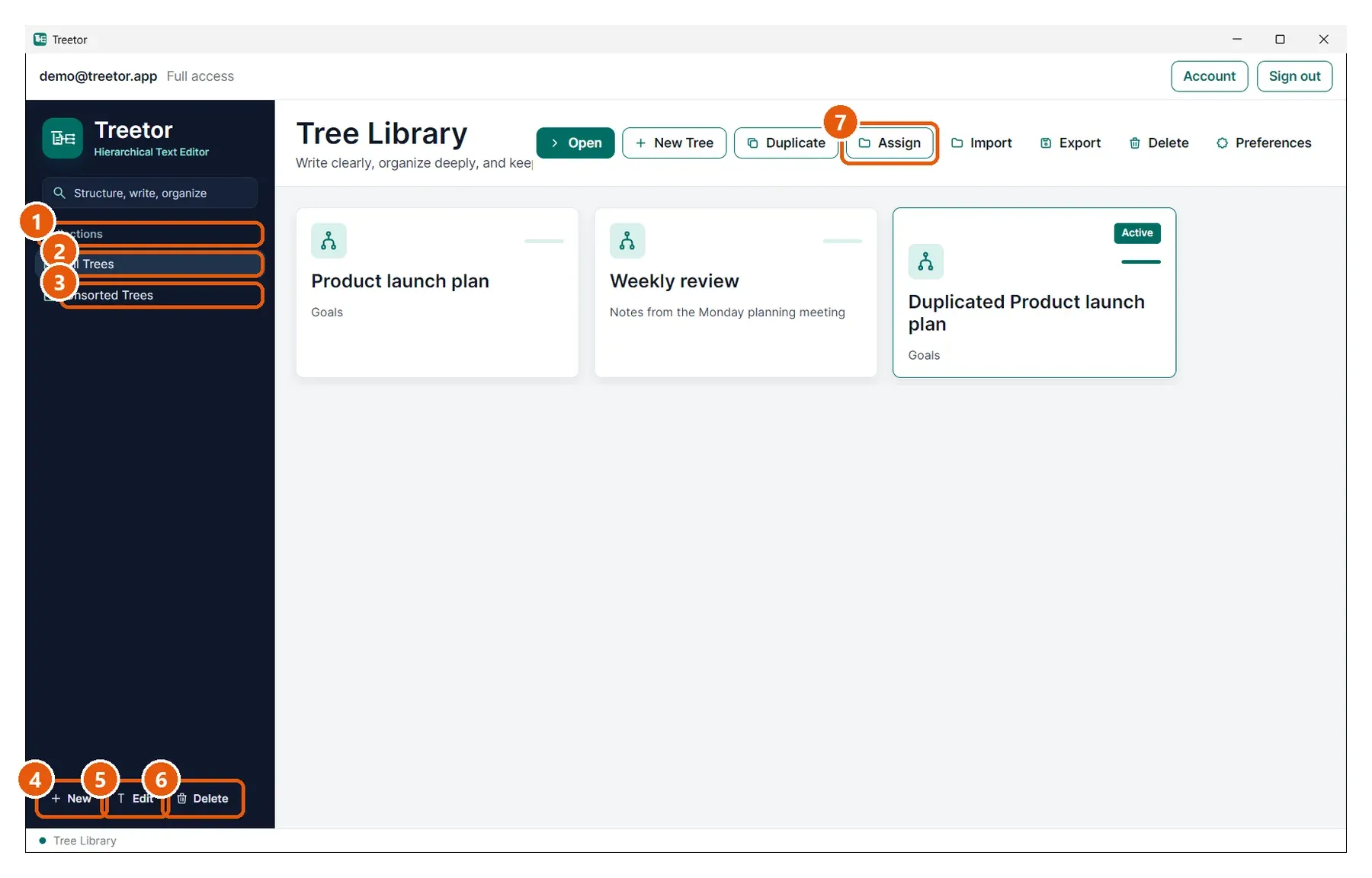
- Collections — the list.
- All Trees — built in: every tree, whatever its collection.
- Unsorted Trees — built in: trees that are not in any collection yet.
- New — create a collection.
- Edit — rename the selected collection.
- Delete — remove the selected collection. Its trees move to Unsorted; nothing is deleted.
- Assign — in the toolbar: put the selected tree into a collection.
Create a collection
Click New under the sidebar, type a name, and save.
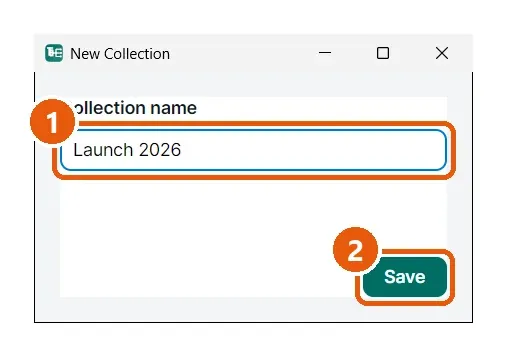
- Collection name — replace the placeholder with your own name.
- Save — adds the collection to the sidebar.
Put a tree in a collection
Select a tree card, click Assign (or right-click the card › Assign Collection), and pick the collection.
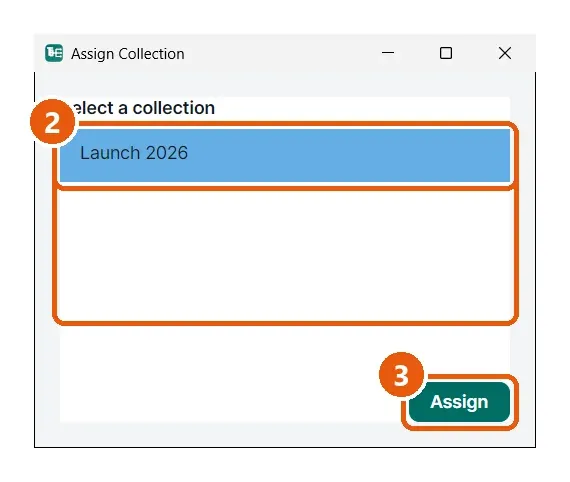
- Collection list — every collection you have created.
- Your choice — click to select it.
- Assign — moves the tree there. Assigning again later moves it to another collection.
Browse by collection
Click a collection in the sidebar to see just its trees.
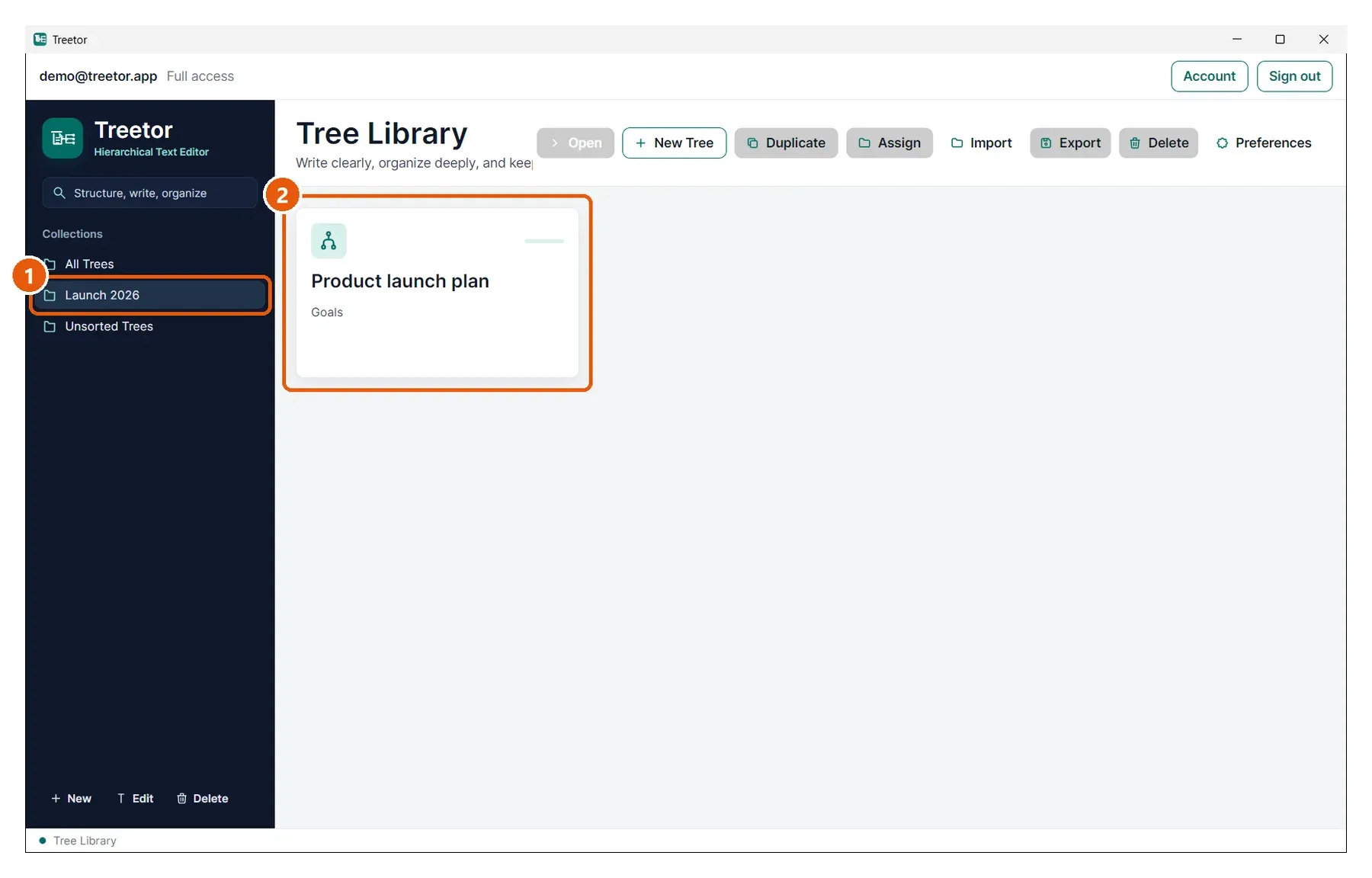
- Selected collection — highlighted in the sidebar.
- Its trees — only cards from that collection are shown. All Trees brings everything back.