
Content profiles
A content profile is a named set of formatting plus the annotation presets that go with it. Treetor ships four — Treetor Focus and Treetor Presentation, each with a dark counterpart — and you can save as many of your own as you like.
Pick, apply and save profiles
The profile controls sit at the top of the Formatting panel.
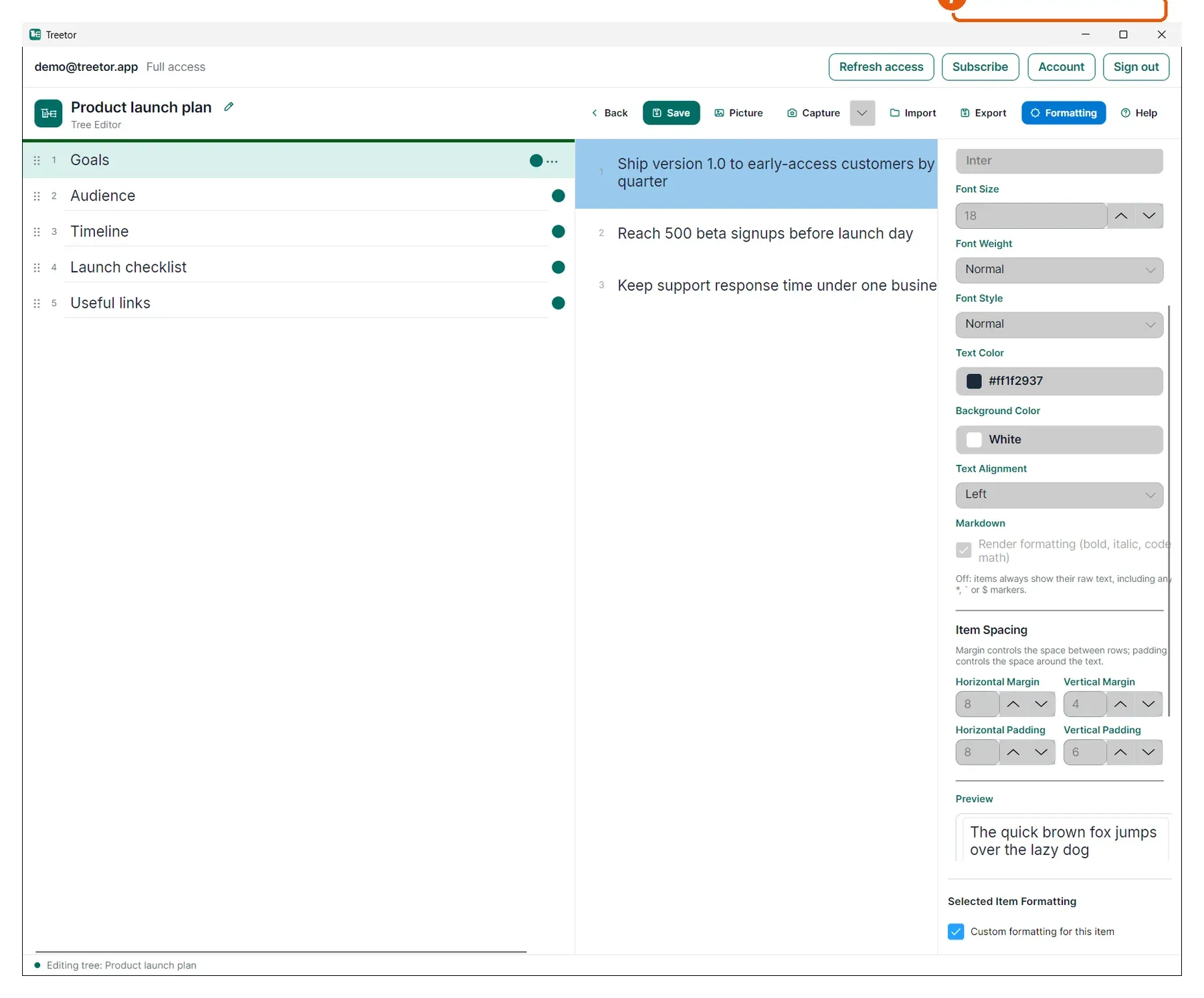
- Profile picker — choose a profile to preview it in the columns. Treetor Focus is compact for writing; Treetor Presentation is larger for showing; the (Dark) versions of each suit the dark theme.
- Apply — make the chosen profile this tree's profile.
- Save — store the current field values into the selected profile.
- Save As — store them as a new profile with a name you choose. This is how you get an editable copy of a built-in profile.
- Rename — rename the selected profile.
- Delete — remove it. Trees that used it fall back to the default.
- Built-in note — appears for any of the four built-ins: they cannot be changed, renamed or deleted, only copied.